
Showing posts with label Xp Tricks. Show all posts
PDF to Word Conversion

This will be a handy tool that you can convert PDFs to Word.
You can do the changes and then you can convert back to PDF. You can either download it for free or you can convert PDF to word online. How cool is that.
Convert Word or any other format to PDF you can use CIB PDF brewer which is another free PDF converter.
http://www.pdf-creator.us/
Windows Group Policy – Hacks and Tricks

In Windows XP operating system if you change any Windows group policy setting it just apply it to Administrator account as well. Especially if you restrict some access to hard drive partition or Run Command it restrict for Administrator as well. That depends on the setting you apply is a user account policy or machine policy. Normally Machine policy will apply to all the users. You can control user account policies base on users. However, Windows XP dose not support domain users like Windows server versions so even user account policies will apply to all the users.
I am using a simple trick to solve this issue. Not 100% but it makes life easier. In the beginning I just mention to copy a shortcut of gpedit.msc to the desktop. Reason behind that is when you play with Windows group Policies it is very easy to hide or prevent access to your hard drives. You will notice it after you restart your machine. Now you do not have access to gpedit.msc.
You might have prevent access to “Run” as well.
Trick 1:
If you done something like above situation you can simply solve it by creating a shortcut manually.
Right click on the desktop and go to “new” and select “shortcut”. It will ask you to give a path. If you have prevent access to your hard drive then you will not able to select the path so just select some other target like Desktop and click “Finish”. Right click on the shortcut that you created and select properties and fill the details for gpedit.msc
Default Values
Target: C:\WINDOWS\system32\gpedit.msc
Start in: C:\WINDOWS\system32\
Click “Apply” and it will create a shortcut for gpedit.msc and now you will able to access gpedit.msc and change Group Policy
Trick 2:
Use Trick 1 and before you disable any Program or Hard Drive you can create a short cut in Desktop. It will allow you to access these programs while other uses do not have any access.
Example: Prevent Access to Computer Hard Drives
First create a short cut to the Drives you going to hide or prevent access.
Then open the gpedit.msc [Start > Run > (type) gpedit.msc > Enter]
In Group Policy > User Configuration > Administrative Template > Desktop > Enable the “Remove My Computer icon on the Desktop”
If you need specific driver to be hidden you can go to In Group Policy > User Configuration > Administrative Template > Windows Component > Windows Explorer > and select the specific drivers from “hide these specific drivers from My Computer”
If you prevent access for My Computer, shortcuts will not be working.
Restart - Simplest Way to fix a Problem
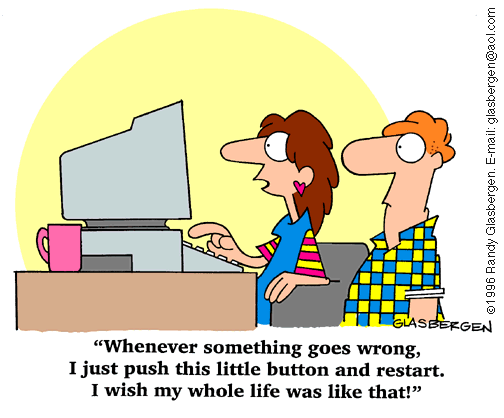
Even after proper shut down it will not completely wiped out for couple seconds or for couple of minutes. So it is always leave your computer off for couple of seconds or minute before starting up again. If you had to pull the power off always better to do a proper shut down and start it again. It will eliminate most of the problems out of your computer.
Is it always safe to reboot? No, even though proper restart fix most of the problems there are situation where you should not restart your computer. specially if you think your computer is infected with a virus or any kind of malware it is not safe to restart. Some viruses or Trojans will get the initial trigger and give the best chance to properly installed. Like other programs need a good restart to configure and installed properly, viruses and Trojans need it too. If you feel like your computer is infected it is always good to install a good antivirus and update it. Then reboot it in safe mod and do a full scan. There are situations where restart is not going to work.
Restart is not only solve computer problems. Even software problems will be solve. For example in Outlook sometimes emails will be stuck in outbox. Most of the time it can be solved by just closing the Outlook properly and starting it again.
Even this is relevant to humans. Small nap or good night sleep ill refresh you. You have been struggling solve a problem for hours and did not work out, but just after a small break you or a sleep you solve it. Take a break from any problem and come back to it. Much easier to fix it.
